
Please watch this training video on Compose Rules: Compose Rules
By default, the algorithm aims to balance classrooms based on the following criteria: gender, reading scores, behavior scores, last year’s teachers, and placement requests. Using the Compose Rules you can set rules for the algorithm to cluster or evenly distribute identified students into certain classes for next year. You can also choose a class to loop for next year. Select Compose Rules in each grade level card on your admin dashboard:
Click on any image to expand the view.
.png)
Inclusive Rules
With this rule, you can tell the algorithm to place certain identified students into a specific classroom or classrooms. After the identified students are placed, the algorithm will “fill up” the class or classes with students who do not have that specific identifier. In the example below, the ELL students will be placed into the first two classes in an Inclusive manner:
.png)
After compose is run this is the result:
.png)
Exclusive Rules
With this rule, you can tell the algorithm to place identified students into a specific classroom or classrooms evenly distribute them across two or more classrooms of next year's grade level in an exclusive way. Only the identified students are placed into the class or classes with that specific identifier. In the example below, the ELL students will be placed into the first two classes in an Exclusive manner:
.png)
After compose is run this is the result:
.png)
An Exclusive assignment is exclusive:
A classroom that is used in an Exclusive rule, cannot be used in a another rule.
Loop Class
With this rule, you can tell the algorithm to loop a current year class to a class in next year's grade level. All the students in the current year class chosen will remain intact for next year.
In the example below we have chosen to loop Bretta's class and place them in Class 4 for next year's 1st grade.
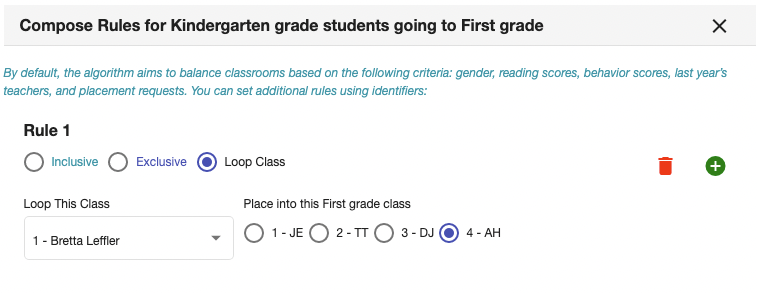
A Loop Class assignment is exclusive:
A classroom that is used in a Loop Class rule, cannot be used in a another rule.
Multiple Rules
You can set multiple rules. Use the green + icon to add a rule, the red bin to delete a rule, and please be sure to click the blue Save or Save and Exit buttons to save your settings. In this example the ELL students will go into Class 1 and Class 2, while the GT students will go into Class 3:
.png)
View Compose Rules
While composing a grade level, you can check what rules were set by clicking the View Compose Rules button on the top right of your screen. This can come in handy for teachers who do not have access to the Admin Dashboard were Compose rules are set.
.png)
Test Out Different Compose Rules
With our Start Over feature, you can reset your class lists composition, set new rules, and compose again.
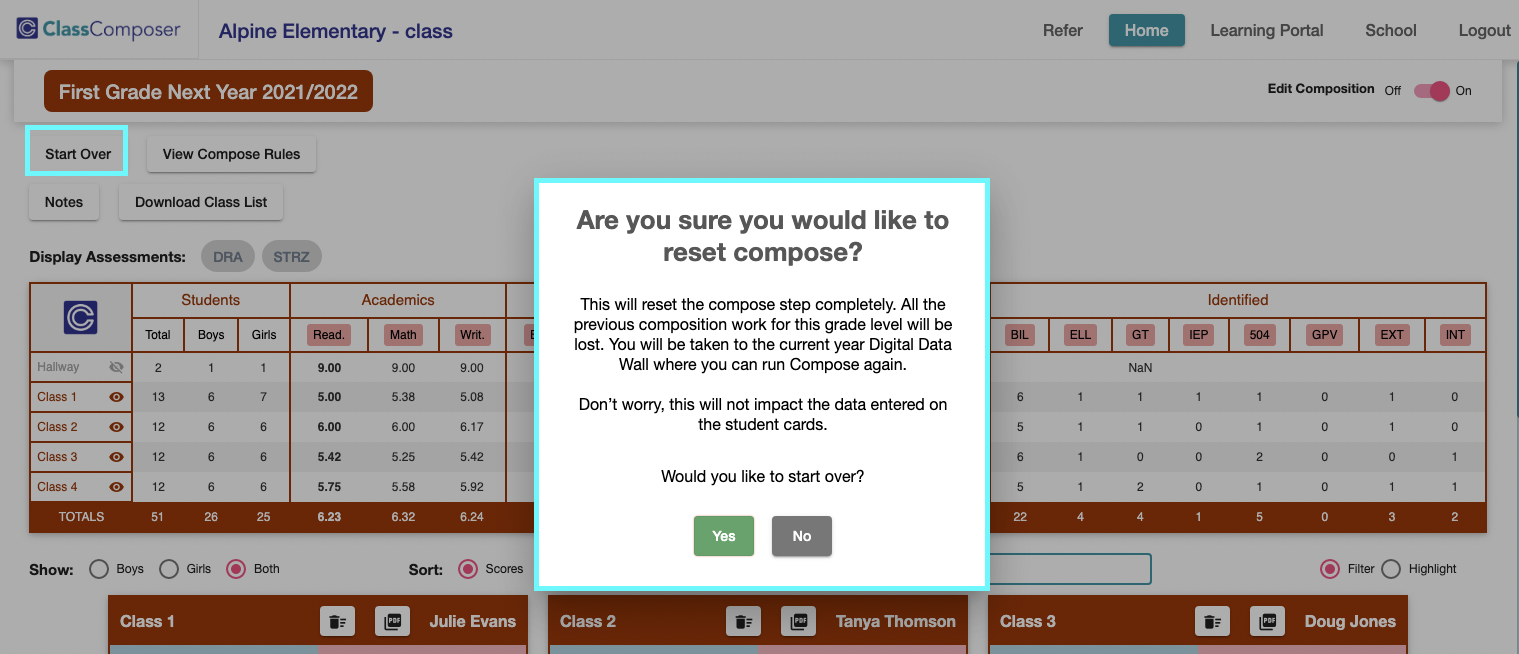
Compose Algorithm Breakdown
Too Many Exclusive Rules
Too many exclusive rules may prevent the algorithm from running as no classrooms may be left to place certain students. For example, suppose you have 6 classrooms, and you set three exclusive rules: BIL students in classes 1 and 2, SPE in classes 3 and 4, and IEP in classes 5 and 6. Now suppose in that grade one or more students are not identified as BIL, SPE, or IEP. The algorithm cannot create a 7th classroom to place them, and so as a result, it won't run and you will get the following alert.
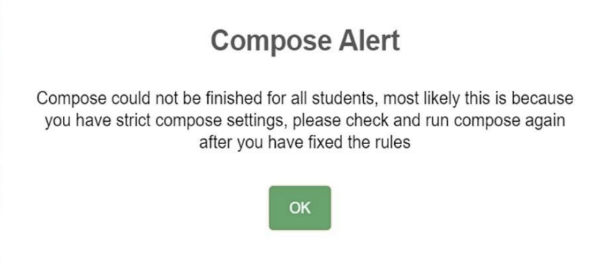
Conflicting Rules
The algorithm does its best to honor your rules as well as the Placement Requests that were entered on a student's card such as Keep with Teacher, Keep with Student, and Keep Away from Student. The rules themselves or the combination of rules and placement requests may be in conflict. For example, a student may be identified as both GT and ELL with one rule placing them in class 1 and the other in class 2. Another example is a student Identified as GT with a rule to place them in class 1, but another student that they are supposed to be Kept Away from has a similar rule placing them in class 1 as well. In these cases, it is not possible for the algorithm to honor these conflicting requirements. We recommend you always verify the result of the placements after the algorithm is run by using the highlight/filter feature on the data table.