
This is where you will add users and send email invitations for them to begin using the system.
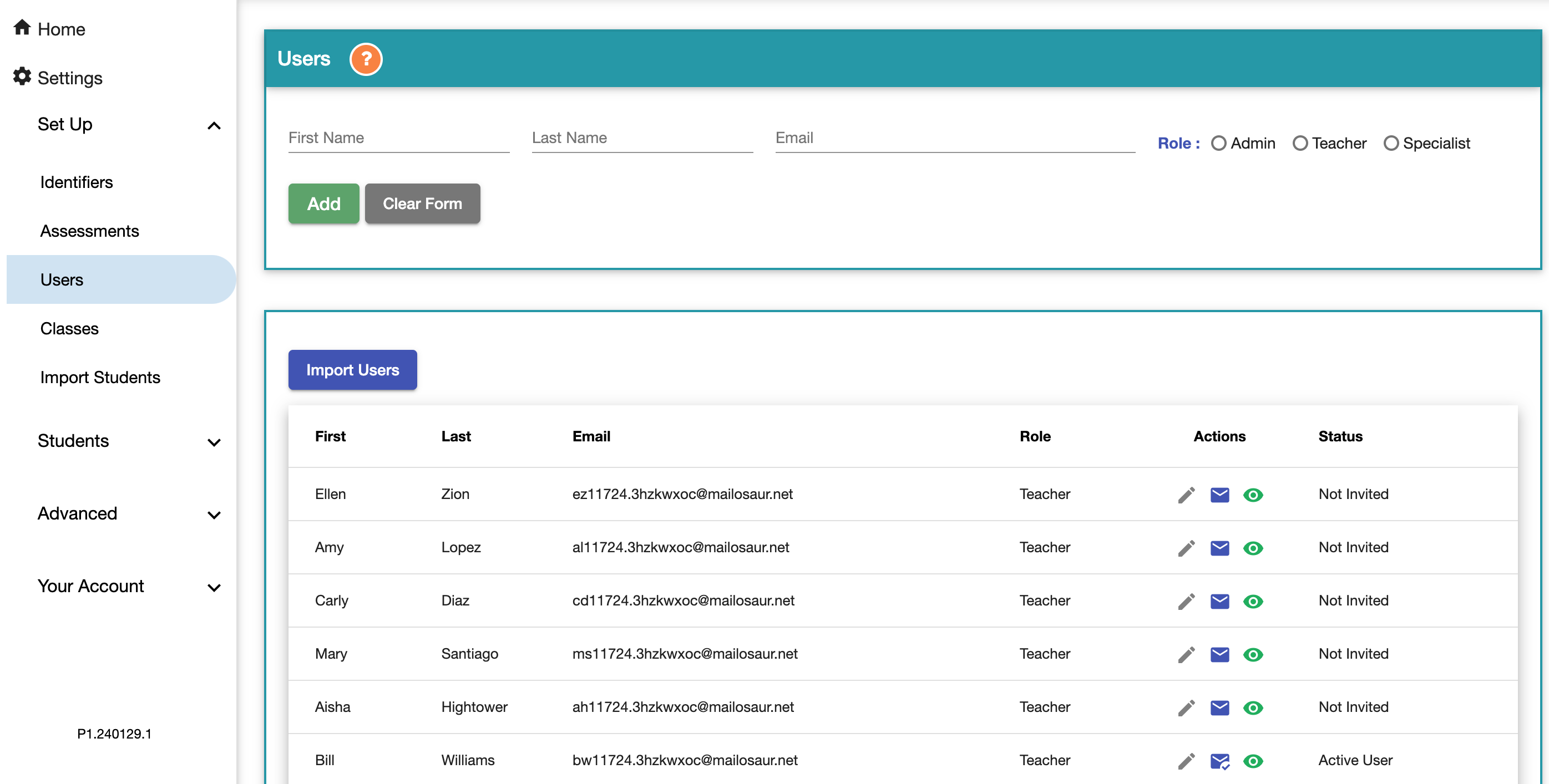
To add an individual user: enter first name, last name, email, choose role, then click the green Add button.
For a bulk upload click on the Import Users button and follow the step-by-step instructions.
The School Representative who completed the Registration process will be automatically added to the list of users.
Reminder
The School Representative (the person who first registered) is automatically assigned to the Admin role. This user, and the associated email, cannot be be assigned simultaneously to a teacher or specialist role.
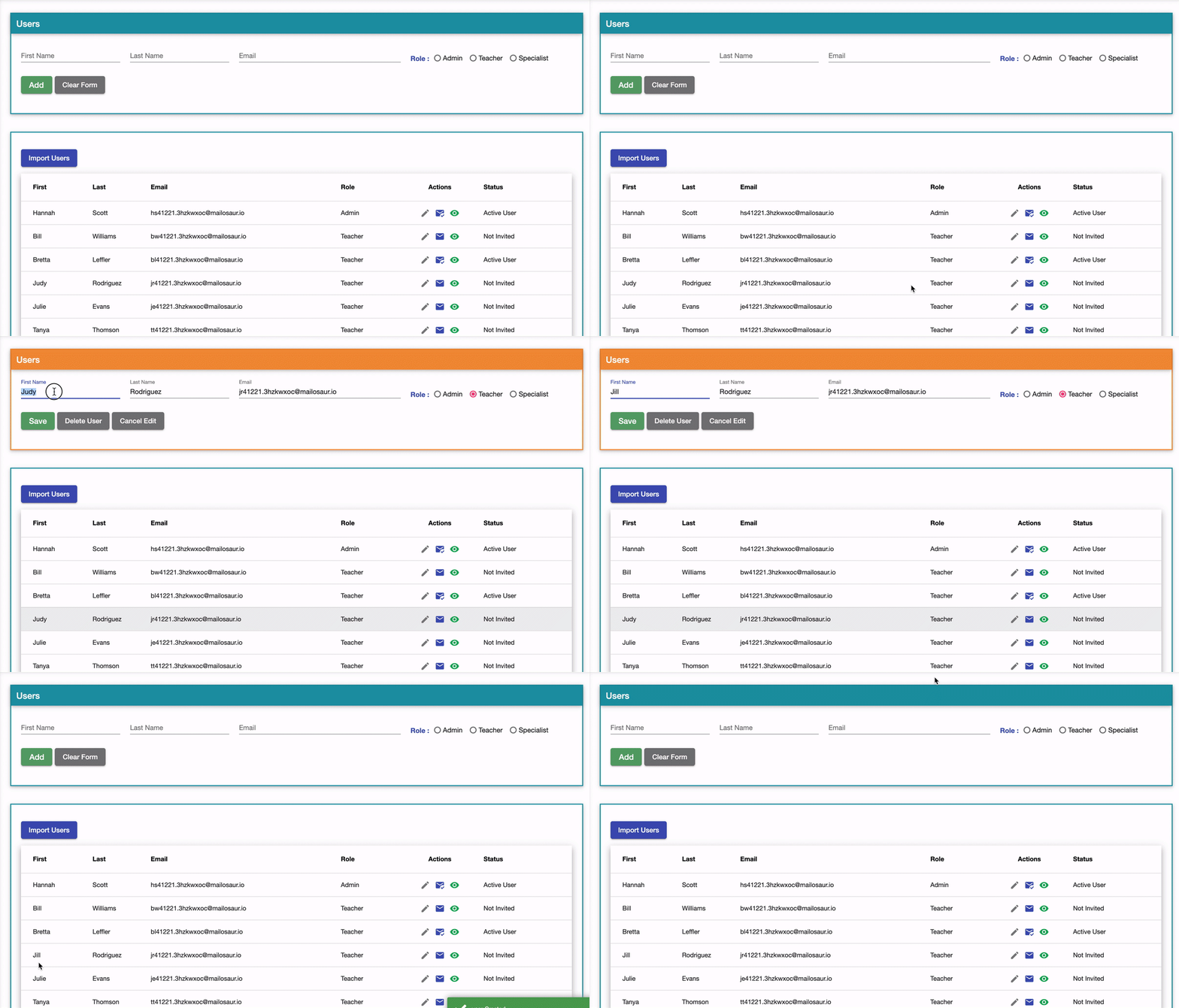
To edit a user click on the pencil icon under the Actions column for that user. The edit window will appear highlighted in orange where you can make the necessary edits.
Send Invite Emails
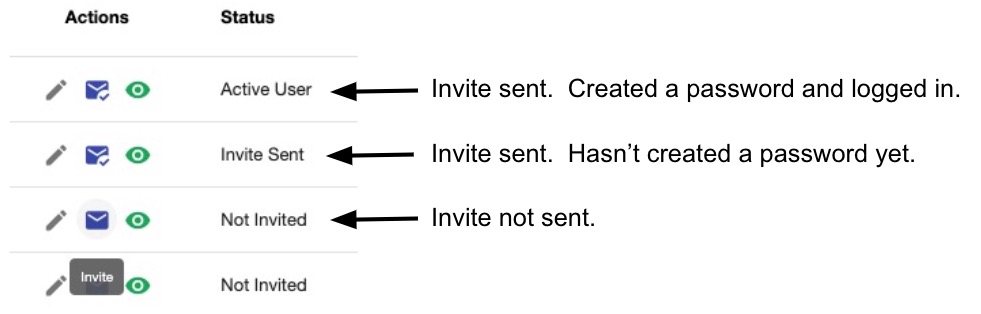
As an Admin you are in control of the timing of sending out the invite email for your users to begin. The invite email will be sent out when you click on the blue letter icon under the Actions column for each user. You will need to click on each letter icon for each user. The checkmark and the Status turning to Invite Sent will signify the invitation email has been sent. Once the invited user verify's their email, creates a password, and logs in for the first time their Status will change to Active User.
Note
We recommend waiting to send out the invite emails to your staff until after the entire Set Up process is complete and your staff has been trained. See Training Your Staff article.
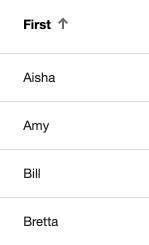
By clicking on the column headers you can display the associated data alphabetically.
User Permissions
To revoke access for a user select the green eye icon > Allow (name) to Login > No.
.png)
Unblock a User Who Is Locked Out
If a user enters three incorrect passwords the system will block their access automatically. To unblock them: Users > click on the pencil icon for the affected user:

Select Unblock User:

Then send these instructions for the user to reset their password:
Go to the login screen of Class Composer > enter your email > Forgot Your Password > reset your password.