
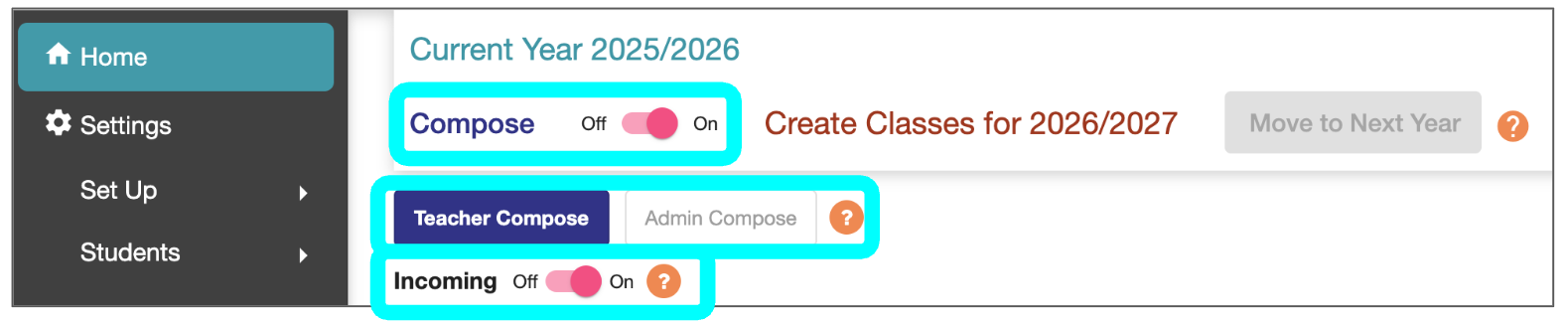
The main admin dashboard settings include: Compose, Teacher Compose or Admin Compose, and Incoming:
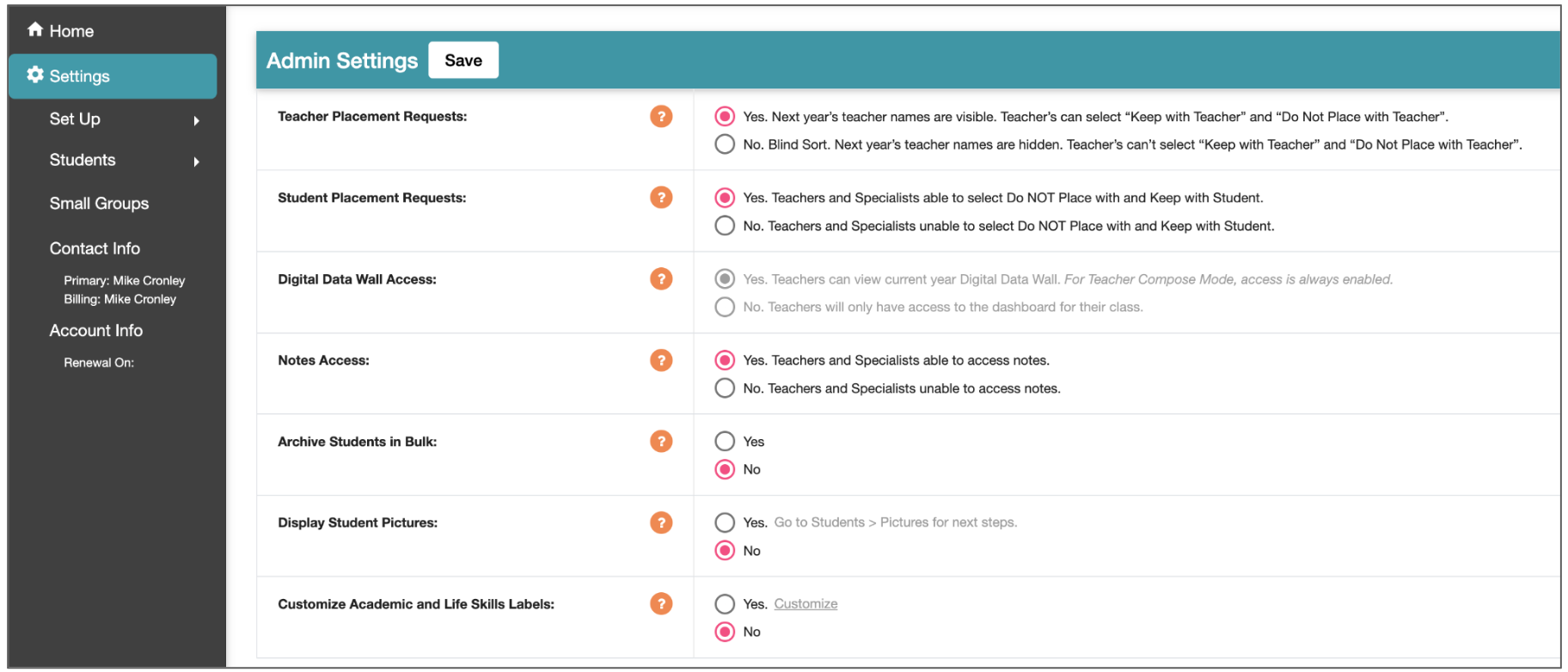
The other options are under Settings > Admin Settings:
Dashboard Settings
Compose

When Compose is toggled On, you and your teachers will be able to create classes for next year. When toggled Off, classes can’t be created.
Teacher Compose or Admin Compose

Teacher Compose allows the highest level of teacher involvement in the composition process:
Teachers are sent emails to use the program.
Teachers are able to view the Compose Digital Data Wall.
Lead teachers run the initial version of Compose. The lead teacher is the only teacher in the grade level to have access to the Compose button and to view the Compose screen.
Admin Compose restricts teachers from viewing the Compose Digital Data Wall and having the ability to run Compose. Options within Admin Compose:
Teachers are sent emails to use the program. They will be able to access their dashboard to enter data on the Student Cards.
Teachers are not sent emails so they can't access the program at all. All grading and composition of classes is done by Admin. If you choose this option we recommend adding teacher names and emails to the Users section even though they aren't being invited. This will allow you to associate teacher names with classes.
Learn more: Teacher or Admin Compose
Incoming

Enabling this feature will allow you to use our Compose algorithm to place your new incoming students into your lowest grade level.
When this setting is disabled your new incoming students will need to be entered directly into specific classes in the lowest grade level of your school.
Learn more: Incoming Students
Admin Settings

Teacher Placement Requests

If you would like to minimize bias when your teachers are creating classes select No. With a Blind Sort applied your teachers won't be able to see the next year's teacher names on the Compose Digital Data Wall. The Keep with Teacher and Do Not Place with Teacher placement request options will be disabled on the Student Card. The lead teacher won’t be able to move students into classes where teacher placement requests have been entered by admin. All teachers will not be able to view or download these admin teacher placement requests.
Learn more: Blind Sort
Student Placement Requests

With No applied, your teachers won't be able to select the Keep with Student and Do Not Place with Student placement request options on the Student Card. The lead teacher won’t be able to move students into classes on the Compose screen where student placement requests have been entered by admin. All teachers will not be able to view or download these admin student placement requests.
Learn more:
Digital Data Wall Access

When Yes is applied, all the teachers in the grade level can access the current year Digital Data Wall. With Teacher Compose selected, access is always enabled. With No applied, Teachers will only have access to their dashboard for their class. No is usually applied when Admin Compose is selected and you only want your classroom teachers to do the scoring of their students.
Notes Access

When No is selected, teachers and specialists will not have access to enter and view Notes.
Archive Students in Bulk

Selecting Yes will allow all Admin users to archive individual classes in bulk from the Digital Data Wall.
Learn more: Archiving, Deleting, and Restoring Students
Display Student Pictures

If you would like to upload student pictures to be part of the Student Card you can enable this feature here. Then go to Students > Pictures to do a bulk import. Once enabled you can also import individual pictures into each Student Card by clicking on the image logo in the Student Card.
Learn more:
Customize Academic and Life Skills Labels

In the Student Card, our default text display for the three Academic color bands are: Great, Good, and Low. Our default text display for the five Life Skills bands are: Excellent, Good, Satisfactory, Low, and Challenging. Selecting Yes > Customize will allow you to change the text to display High instead of Excellent for example.
Select Yes > Customize to revise the text.
Next Step
Complete the Set Up for your school.