
This “grade level” allows you to place your new students into the classes of your lowest grade level using our Compose algorithm and the next year Digital Data Wall screen. If you choose to disable this feature, your new incoming students will need to be placed directly in the classes of your lowest grade level.
To toggle on or off go to Settings > Compose New Incoming Students > Yes or No.
Click any image to expand the view.
.png "image(60).png")
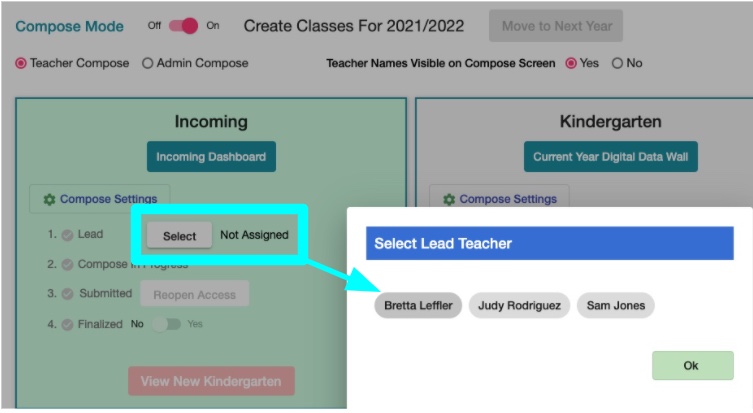
If Incoming and Teacher Compose are both selected, you will need to select a Lead teacher. The teachers available to be selected are pulled from the lowest grade level in your school. In the image below Bretta, Judy, and Sam are the Kindergarten teachers. Bretta is selected and she will be able to navigate from her "normal" K dashboard to the Incoming dashboard.
The Incoming dashboard allows you to enter students one at a time or in bulk by selecting Import Students.
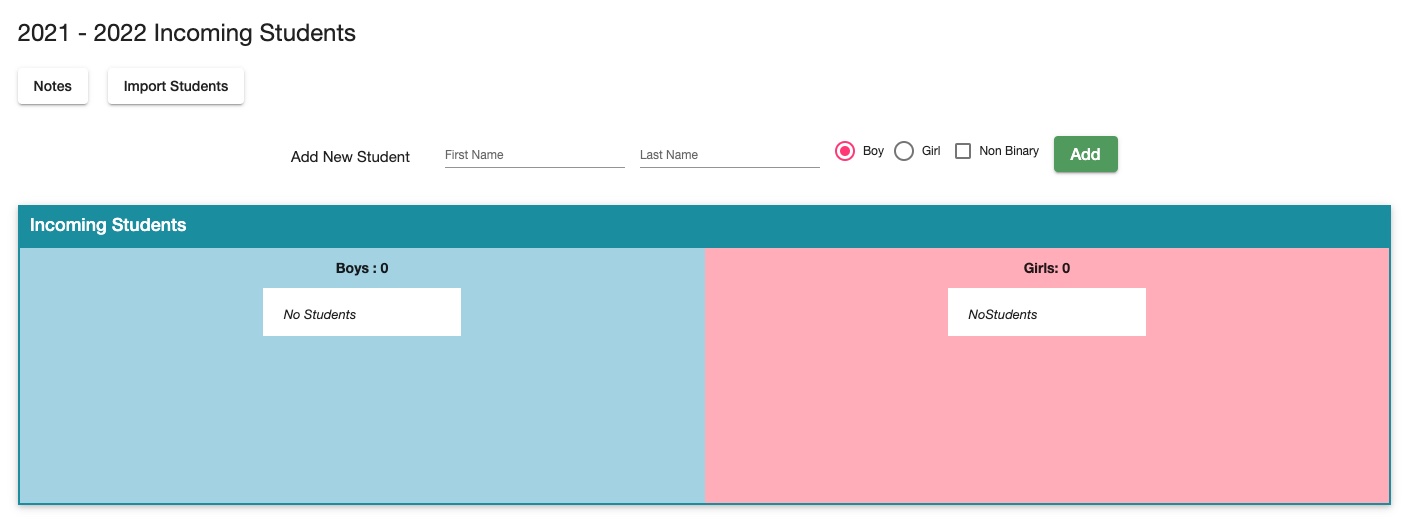
Incoming students will have a default grade of 5,5,5,3,3. From here you can change the grades.

Once all the students are graded run Compose and follow the same flow as any other grade level.
Adding Incoming Students vs. Adding New Students to Other Grade Levels
The Incoming grade level is the place to add students who will be entering your lowest grade level next year only.
If you have new students entering your school who need to go to other grade levels don't place them in the Incoming grade level. Add them in the appropriate grade level in the Current Year Digital Data Wall or in the Next Year Digital Data Wall.
Please visit these articles to learn more: